
Unlocking a “Mining-Only” GPU on Enterprise Server Hardware (And What Went Wrong Along the Way)
Sep 10, 2026 · 7 min read
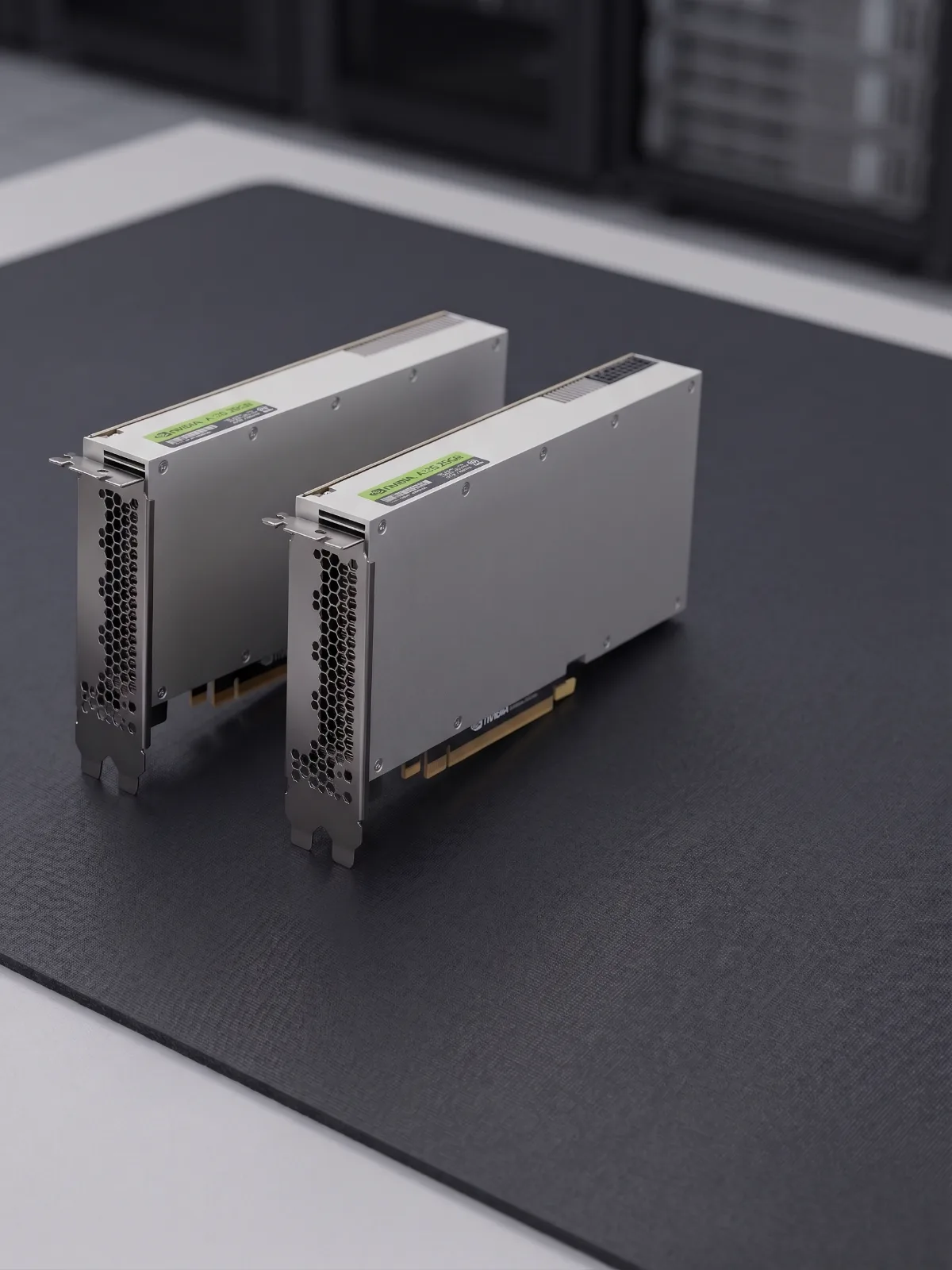
If you've ever bought hardware that's almost what you wanted — cheap, powerful, but artificially limited — you know the itch to fix it yourself. That's exactly what happened when I picked up a pair of NVIDIA CMP 170HX GPUs.
These cards are built on the same silicon as NVIDIA's data-center A100, but NVIDIA sold them as cheap, stripped-down mining cards: locked to 8GB of usable memory (even though the chip physically has 64GB on board), and throttled compute performance. There's a well-known community project that can undo those restrictions in software. I figured: two cards, one weekend, easy win.
It was not a weekend. Here's what actually happened.
The Setup
I run a Dell PowerEdge R7625 — a serious dual-processor AMD server — running Proxmox, a platform that lets you carve one physical machine into multiple virtual ones. My plan was to hand each GPU directly to its own virtual machine, a trick called “passthrough,” so each virtual machine would think it had its own real, physical graphics card.
Getting passthrough itself working took a fair bit of setup: enabling the right processor features, fixing an unrelated bug in how the server managed its boot files, and writing a small script to prep each card before its virtual machine started. All fairly standard stuff for this kind of project.
Then I tried to actually unlock the memory. That's where it got interesting.
Trial One: The Wall That Made No Sense
The unlock software tried to do something called a “BAR resize” — basically, telling the computer “hey, give this GPU a bigger window to talk through, because it needs to expose 64GB now instead of 8GB.” Every single time, it failed with the same cryptic error: no space left.
That made no sense. The server had plenty of memory and address space overall. So where was “no space” coming from?
After a lot of digging — reading kernel logs, testing registers by hand, and eventually finding a discussion on Dell's own community forums about other users hitting the identical wall on totally different Dell servers — I found the real answer: Dell's server firmware quietly gives each part of the processor a tiny, fixed-size window for talking to devices like graphics cards, decided the moment the server boots up, long before any operating system loads. And critically, there's no setting anywhere — not in the BIOS, not in Dell's remote management tools — to make that window bigger. It's just... capped, permanently, on this hardware.

I tried everything short of physically modifying hardware: reallocating memory maps, tearing down and rebuilding parts of the system's device tree while it was running, even trying a fix that reportedly worked for someone running similar hardware in VMware — pre-configuring the graphics card's connection speed directly from the host machine. None of it touched the real problem.
Trial Two: A Different Kind of Dead End
While chasing that first wall, I also tried to unlock a second feature: full-speed data transfer between the card and the rest of the system (it was artificially limited to half speed). Every attempt to fix this caused the graphics card's own internal security firmware to lock up completely during startup — a completely separate failure from the memory issue, but just as stubborn. I eventually confirmed this specific speed unlock simply isn't possible when a GPU is handed to a virtual machine this way, on any server — it needs a level of hardware access that passthrough intentionally prevents, for security reasons.
Two walls. Neither one fixable through configuration.
The Breakthrough
Here's the twist: I'd been assuming the memory unlock required that BAR resize trick, because that's what the documentation for the tool I was using said. It turns out that assumption was wrong for at least one alternative version of the unlock software. That version achieves the same 64GB memory unlock through a completely different internal method — one that never touches the BAR setting at all.
I hadn't needed to solve the “no space” wall. I'd needed to stop hitting it.
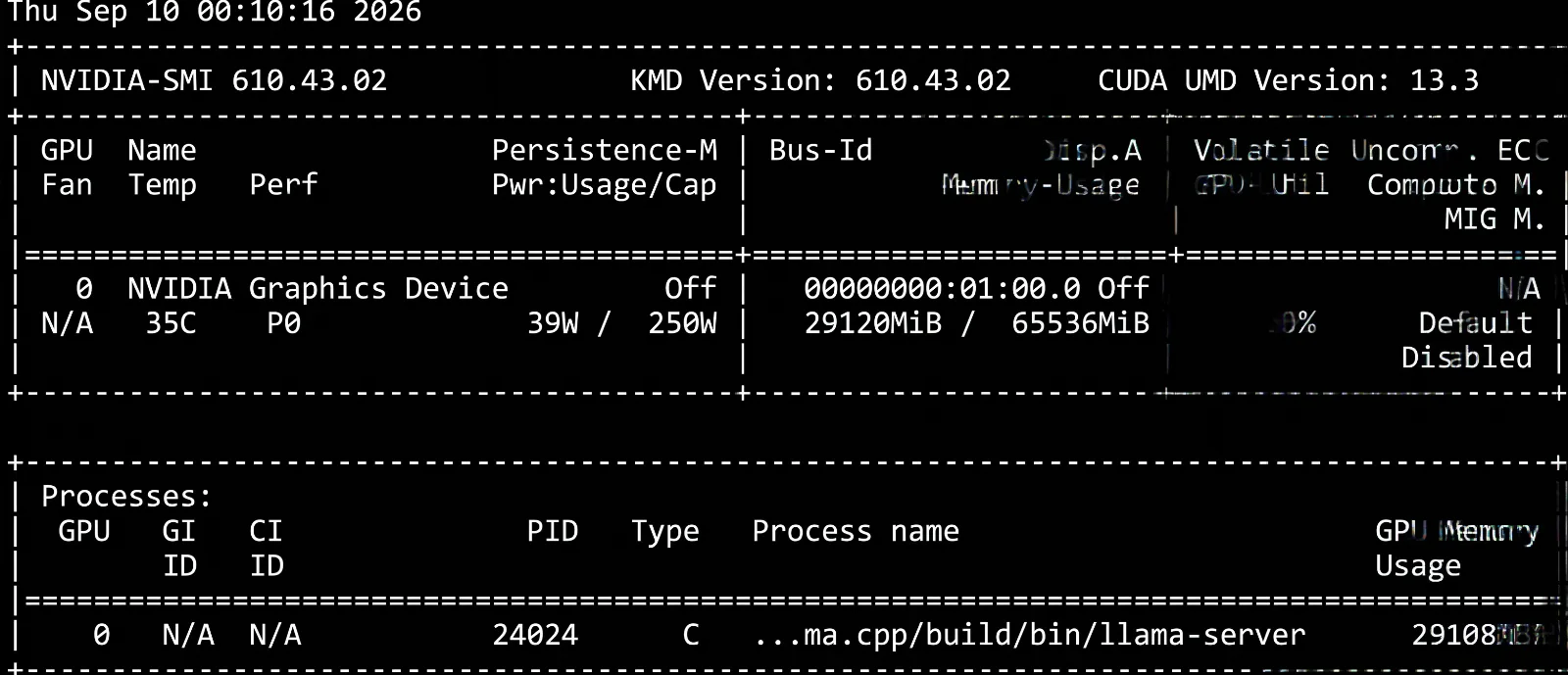
Switching to that version, and leaving the failed speed unlock alone, gave me exactly what I originally wanted: both cards, fully unlocked to 64GB, running real AI workloads today.
What I'd Tell Past Me
Three things, if I could go back:
- “It failed” isn't the same as “it's impossible.” The actual blocker (a hardware address-space limit) and the thing I was trying to do (resize a memory window) turned out to be separable — I just didn't know that until much later.
- Read error messages literally before assuming the worst. “No space left” sounds vague, but it was telling me the exact truth the whole time.
- When one tool's documentation says something is required, that's a claim about that tool, not a law of physics. A different implementation proved it wrong.
Both GPUs are now happily running large language models around the clock. The whole detour probably cost me a full evening I didn't plan for — but I understand this hardware a lot better for it.